Building an Effective Note-Taking Workflow in Notion
Why Use a Note System
A note-taking workflow is an integral part of my knowledge management system.
The Notes database serves to quickly capture highlights, quotes, thoughts, facts, and tips related to content saved in your library as well as your own thoughts and ideas. Surfacing these at a high level allows you to easily draw comparisons and develop ideas across different pieces of content. Adding these to a separate database allows those important notes and snippets to be found quickly without trudging through individual pages in your library but the extract will still relate to your original source material.
I went into more detail on how I built my broader system in my post here: Building a Personal Knowledge Management System.
Note Structure
Storing your note content within a synced block allows you to use your notes across multiple pages, keeping the content consistent across the board. It also allows for long-form writing within your notes, versus storing the note content within the title property for example. Some beneficial workflows for this include:
- Quickly capturing snippets from articles as notes
- Using your notes directly in work you produce like blog posts
- Maintaining one source of truth. If you produce technical content, keeping instructions stored in a centralized synced block means that when instructions are updated that is reflected in every instance of that synced block.
For the note database to be effective, the note content must be accessible at the database level. I want to be able to see and utilise the note content without accessing the page.
The one limitation I have found to this approach, which is worth keeping in mind, is how Notion handles database search.
When you search for something in the database search bar, it will surface database entries that contain your search term in the page title or property values but not the page contents.
This means, for now, you're reliant on your filters or how you're titling your notes to surface what you want. Alternatively, you can still use your global workspace search which will also index page content. To do so, click Search at the top of your left-hand sidebar. You can also open search with shortcut cmd/ctrl + P, or cmd/ctrl + K if your cursor is not focused on a block.
Capturing Notes
I’ve spoken about capturing for my whole system in How I Use Notion for Personal Knowledge Management: Capture, and for my notes, the same principles apply. I need to be able to capture a note quickly in the moment. The process should be as frictionless as possible. I use Notion's built-in sidebar to leverage this. The full architecture of this system is available in my System Blueprint.
One reason I was, at first, hesitant to use the built-in sidebar was that I was using buttons within my (manually created) navigation for quick capture. Notion had a built-in solution for this in their sidebar all along. Simply add the database(s) you require quick capture for — Notes, Tasks, etc. — and add those pages to your sidebar. The database will have a plus icon next to it and you can quickly add to your database. You can add databases directly to your sidebar from the top right-hand button in the sidebar. You can also favorite pages and they’ll appear in their own section of the sidebar. Personally, the favourites section is what I use for my quick capture databases.
One reason I was, at first, hesitant to use the built-in sidebar was that I was using buttons within my (manually created) navigation for quick capture. Notion had a built-in solution for this in their sidebar all along. Simply add the database(s) you require quick capture for — Notes, Tasks, etc. — and add those pages to your sidebar. The database will have a plus icon next to it and you can quickly add to your database. You can add databases directly to your sidebar from the top right-hand button in the sidebar. You can also favorite pages and they’ll appear in their own section of the sidebar. Personally, the favourites section is what I use for my quick capture databases.
I highly recommend leveraging Notion’s built-in sidebar for this. It’s important to how I structure my Notion workspace, which I discuss further in My Notion Workspace Blueprint, but here are the key benefits:
Ultimately this comes down to personal preference. You may prefer to add links within your Notion pages themselves but the main benefits of using the built-in sidebar to jump between pages in your workspace are:
- It's sticky. It stays there as you scroll down the page. Scrolling back up a content-heavy page to find links you manually added to a page can be cumbersome
- It's collapsible. You can hide the sidebar and get the benefit of using your full screen real estate for your page content.
- Quick capture. I use full-page databases, and I added databases like Tasks and Notes to the favourites section of the sidebar. Hitting the plus icon next to those pages is a great way to quick capture items anywhere in your workspace.
Ultimately this comes down to personal preference. You may prefer to add links within your Notion pages themselves but the main benefits of using the built-in sidebar to jump between pages in your workspace are:
- It's sticky. It stays there as you scroll down the page. Scrolling back up a content-heavy page to find links you manually added to a page can be cumbersome
- It's collapsible. You can hide the sidebar and get the benefit of using your full screen real estate for your page content.
- Quick capture. I use full-page databases, and I added databases like Tasks and Notes to the favourites section of the sidebar. Hitting the plus icon next to those pages is a great way to quick capture items anywhere in your workspace.
Capturing Quotes or Highlights
You can capture notes whatever way suits your workflow. Generally, how I do this would be turning text from an item in my library database to a page in my notes database.
To create a note from an article you have saved in your library for example, by selecting the text block, image block, etc., in the article and selecting copy link to block in the block options or using the keyboard shortcut Alt + Shift + L . You can then paste the link into a new page in your notes database and select the Paste and Sync Option for it to paste as a synced block. You can then also paste the link into the Linked Block field.
The benefit of this approach is simple, while creating the page in your centralised notes database, you're also left with a link to the note directly where it’s been sourced from. Having these backlinks in place is super helpful if you ever want to refer back to the original context of a quote for example.
By adding a URL property called Linked Block into your notes database. You can copy a link to a block from the block options or by pressing ALT SHIFT L to paste into this URL property.
Storing the link to the synced block in the Linked Block URL field means that it can be accessed at a database level, i.e. you don’t need to click into the page to get the link.
By adding a URL property called Linked Block into your notes database. You can copy a link to a block from the block options or by pressing ALT SHIFT L to paste into this URL property.
Storing the link to the synced block in the Linked Block URL field means that it can be accessed at a database level, i.e. you don’t need to click into the page to get the link.
Note Content
Notion offers the perfect tool to be able to enrich the data in our notes and build connections across our workspace databases. Page mentions. Mentions are similar to internal linking you would see in other note-taking software.
Mentions let you reference and add an inline link to another page inside a Notion page, type @ followed by the page's title. You'll see a menu pop up that'll search for that page in real-time. Find the right one and press enter. Now you and others can jump to the linked page directly. If you change the title of a page, the @-mention links that go to it will also reflect that change automatically.
This is very much like the backlink which you might see in other note taking software like Obsidian and Roam Research as examples.
I covered how enriching your notes with these connections fits into the distilling phase of my knowledge management process here: How I Use Notion for Personal Knowledge Management: Distill.
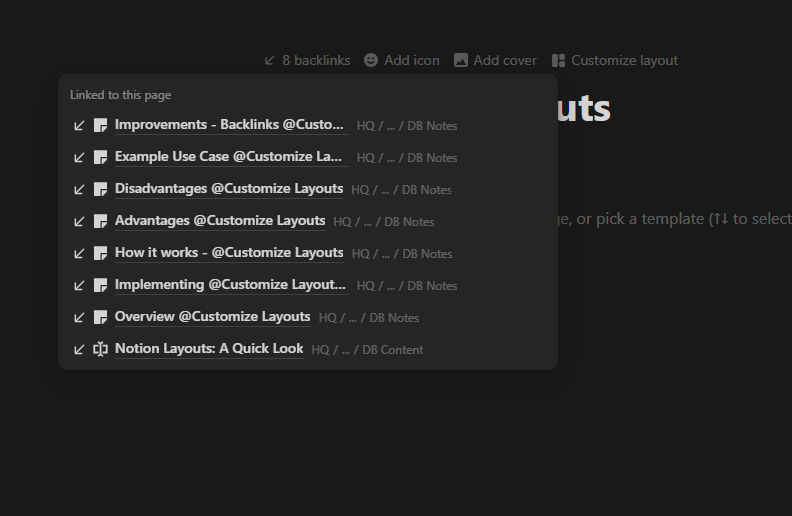
However, there are some limitations to how backlinks (mentions) are implemented in Notion.
We currently only seem to be able to display backlinks in a minimal style, whereas we used to display them as a more expanded list at the top of the page. I would like better visibility options for backlinks within the page layout.
This feeds into my big request for backlinks in general, which is the ability to have them display as a database property. Notion is a tool built primarily on databases. The purpose of databases is to be able to view the information you need at a database level, this is the whole philosophy my My Notion Workspace Blueprint. Backlinks are an excellent way to create relationships between pages without breaking your flow of writing. Quickly mention an article you read, a tool you are reviewing with an @ and you can create that relationship between where you’re writing and that page. However, it’s not possible to view that relationship at a database level. You need to drill down to the page level to be able to find where it’s linked. Having a dedicated property for mentions, or even better mapping that to relation properties would be a game changer. It would dramatically improve my My Note Taking Approach in Notion and avoid having to use the complex automation I currently have.
I went into more detail on building this automation in my post here: Building a Notion Mentions > Relation Automation.
A dedicated note-taking system is a powerful way to make connections between your ideas, and Notion offers a robust set of features out of the box that make building and then finding those connections easier. With some more advanced tinkering, building those connections becomes a lot more fluid and can save time on some more manual data entry.
If you'd like to get started with a complete note-taking and knowledge management system built on these principles, check out my Knowledge Management Kit 2.2.4.
More from the Blog