Building a Notion Mentions > Relation Automation
I built an automation in n8n that maps mentions from page content in my notes database to relations properties across databases in my workspace.
This post explains how and why. Let's start at the why so we're all on the same page.
What's n8n?
n8n is an open-source workflow automation platform that gives technical teams the flexibility of code with the speed of no-code. It features 500+ integrations, native AI capabilities, and can be self-hosted or used in the cloud, making it ideal for building complex automations and AI agents.
What are Mentions?
Mentions let you reference and add an inline link to another page inside a Notion page, type @ followed by the page's title. You'll see a menu pop up that'll search for that page in real-time. Find the right one and press enter. Now you and others can jump to the linked page directly. If you change the title of a page, the @-mention links that go to it will also reflect that change automatically.
This is very like the backlink which you might see in other note taking software like Obsidian and Roam Research as examples.
What are Relations?
A relation in Notion is a special property type that connects pages from one database to pages in another database (or the same database). It creates a two-way link between database entries, allowing you to see and manage connected information across your workspace.
Do you see the connection? Mentions and relations are two ways to create a relationship or connection between two different pages across your workspace.
This feeds in to my big request for backlinks in general, which is the ability to have them display as a database property. Notion is a tool built primarily on databases. The purpose of databases is to be able to view the information you need at a database level, this is the whole philosophy my My Notion Workspace Blueprint. Backlinks are an excellent way to create relationships between pages without breaking your flow of writing. Quickly mention an article you read, a tool you are reviewing with an @ and you can create that relationship between where you’re writing and that page. However, it’s not possible to view that relationship at a database level. You need to drill down to the page level to be able to find where it’s linked. Having a dedicated property for mentions, or even better mapping that to relation properties would be a game changer. It would dramatically improve my My Note Taking Approach in Notion and avoid having to use the complex automation I currently have.
Since we don't have that feature built into Notion natively, I built it myself in n8n. Here's how it works:
Overview
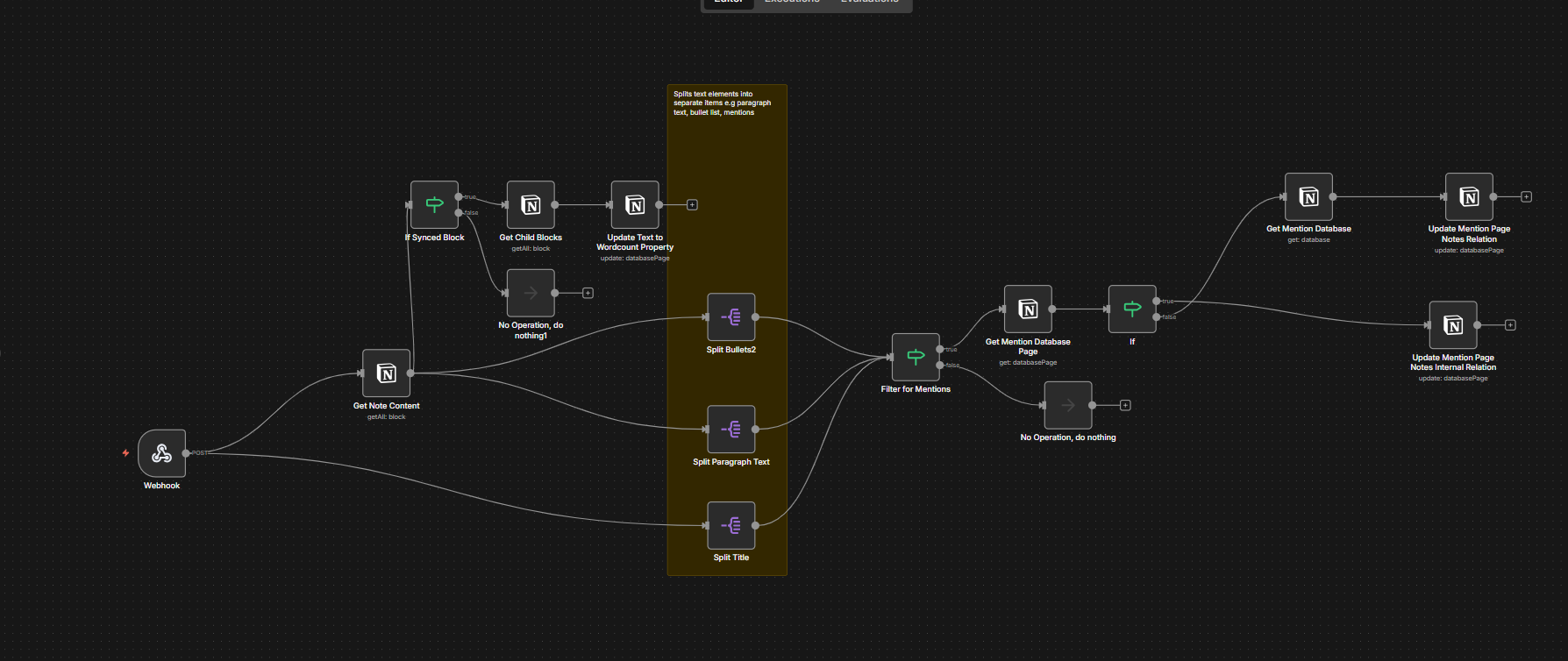
This automation watches for any changes in your Notion pages. When you mention another page using @-mentions in your content, the automation spots this and does something useful: it creates a two-way connection between those pages at the database level.
In simple terms, if you mention Page B while writing in Page A, the automation automatically updates your database to show these pages are related to each other. This saves you from having to manually link pages in your database properties every time you mention them in your writing.
To clarify, I use synced blocks as a part of my My Note Taking Approach in Notion . Sync blocks add another layer of complexity to this automation, because they require an API call. I’ll point out where you can adapt this to use regular text blocks as we go.
Node-by-Node Breakdown
Trigger
The trigger is simple but specific: whenever a page is added to a particular database view, and that page has content in its "Linked Block" property, n8n receives a webhook notification from Notion.
This trigger design is deliberate. You don't want the workflow running on every single page update in your workspace. That would be noisy and inefficient. Instead, it targets pages where you've explicitly signaled that linking matters—pages where you've added a linked block reference.
Once triggered, the workflow's first job is data collection. It reaches out to Notion's API and retrieves all the blocks from the page. Not just the top-level content, but nested blocks too.
The Linked Block property is a big part of Note Taking Philosophy in Notion but you can select any trigger.
Parsing the Data
The workflow splits into parallel branches. Each branch focuses on a different content type: the page title, bulleted lists, and paragraph blocks.
Why the split? Because Notion structures these differently in its API. A title is a property. Bullets are list blocks with special formatting. Paragraphs are basic text blocks. By processing them in parallel, the workflow runs faster and handles each format appropriately.
The title branch looks for page mentions in your page name. The bullets branch extracts text from every bulleted list item, checking each one for mentions. The paragraph branch does the same for standard text blocks.
I place my note content in synced blocks, and my note always contains the original synced block. Ensuring 'get child blocks' is toggled on in the Get Note Content node is enough to get the content in the synced block here. I haven't had to test it, but I imagine there might be an extra step to retrieve the original synced block if your note holds a copy of the synced block.
One other thing worth noting is that I built this automation in Make previously and had to use a HTTP request for synced block data because the built-in Notion nodes couldn't handle them. I didn't run into this issue in n8n but that could also be down to changes in Notion's API since then.
You could add additional text block types like quotes but paragraphs and bulleted lists are the only ones I really use.
Wordcount
There's a short branch off that does a quick wordcount of all the parsed data, by adding it to a text property, then a Notion formula property counts the words. Here's that formula:
prop("Text for wordcount").replaceAll("\\n", " ").split(" ").length()
Finding the Mentions
The workflow scans each chunk for a specific pattern: mention.page.id. When Notion stores a page mention in its API, it includes metadata about that mention, including the unique ID of the page being referenced. If a text chunk contains this pattern, it's flagged as a mention. If not, it's discarded.
This is elegant because it's precise. The workflow doesn't try to guess whether "@Project Alpha" is a mention or just text that happens to have an @ symbol. It looks for Notion's own internal marker so no false positives.
Once a mention is confirmed, the workflow retrieves the full page being mentioned. It needs more than just the page ID—it needs to know which database that page belongs to. This matters because the next step depends entirely on that information.
Creating the Relation
The workflow doesn't actually update the note you just wrote (with the caveat of the wordcount being added). Instead, it updates the page you mentioned, adding a relation to your note.
This is a crucial distinction. When you mention Page B inside Note A, the automation reaches out to Page B and says, "Hey, Note A just referenced you." Page B's relation properties get updated automatically, creating the bidirectional link at the database level without you lifting a finger.
If the mentioned page lives in a different database from your note, the workflow looks for a relation property called "Notes" on that page. If you mentioned another note while writing your note, the workflow uses a different property: "Connections."
This automation relies on you keeping a common naming convention for your relation to your Notes database. The workflow preserves any existing relations, too. Nothing gets overwritten.
But which relation property gets updated? That depends on the database.
First, the workflow retrieves the full database page for the mentioned page. It adds your note to that property. This is your cross-database connection: a project page, a task, a resource—whatever you mentioned—now has a reference back to your note in its "Notes" relation.
That's simply because I thought it might be confusing to have a property titled 'Notes' in my Notes database where I already use 'Note' as the Title property.
This workflow runs completely in the background. You write your notes naturally, mentioning projects, tasks, resources, or previous notes as you think. The automation handles the rest, mirroring those relationships at the databse level
If you're using n8n and Notion together, this workflow is adaptable. Swap "Notes" and "Connections" for your own relation properties. Adjust the trigger to match your database structure. The core logic—detect mentions, compare databases, update relations—works regardless of your specific setup. The json file is availabe below for you to import:
More from the Blog