How I Use Notion for Personal Knowledge Management: Capture
Disclaimer: Please note that some links in this article may contain affiliate links. This means that I may earn a commission if you make a purchase or sign up through those links at no extra cost to you. I only recommend products and services that I have personally used and found valuable.
In part one I looked at why I use a personal knowledge management (PKM) system and why I chose Notion as the tool for that system. If you haven’t read part one you can do so here. For a quick TLDR of part one, I think an extract from Tiago Forte’s Building a Second Brain sums up “the why” for PKM systems quite nicely:
“Find anything you’ve learned, touched, or thought about in the past within seconds. Organize your knowledge and use it to move your projects and goals forward more consistently. Save your best thinking so you don’t have to do it again. Connect ideas and notice patterns across different areas of your life so you know how to live better. Adopt a reliable system that helps you share your work more confidently and with more ease.”
In the subsequent posts in this series, I’ll discuss the Notion functionality and knowledge management frameworks that make this system powerful. I’ll also explore how you can use it, and integrate it into your own system.
Notion Databases
Let’s start by looking at the primary databases that make this system tick. There’s a number of tangential databases which integrate with the PKM system but we’ll focus on the primary ones for now:
Library
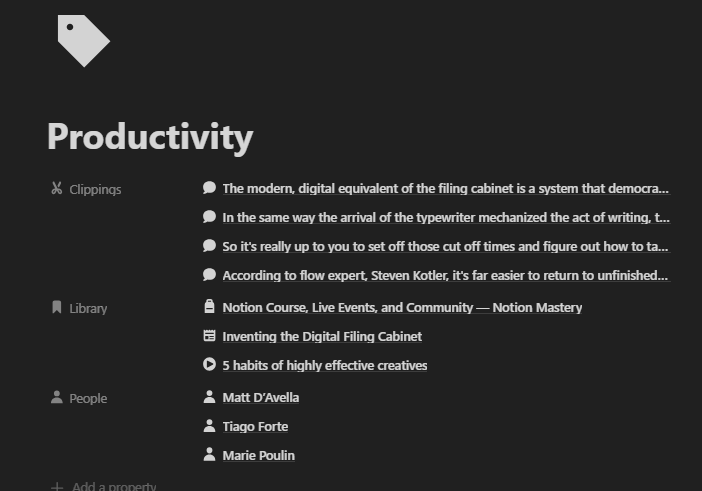
This is the home for any resource I want to be able to consume or refer back to at some point in the future. Books, videos, articles, podcasts it’s all accessible within this space. Resources are captured into the library, organized through tags and other meta data, then consumed and distilled into individual clippings.
Clippings
Clippings are quotes, tips, facts or thoughts distilled from a Library resource. Clippings can act as building blocks, or ideas to build upon, in my own work like this article. Clippings can be related to a Content idea to inspire or improve the end product.
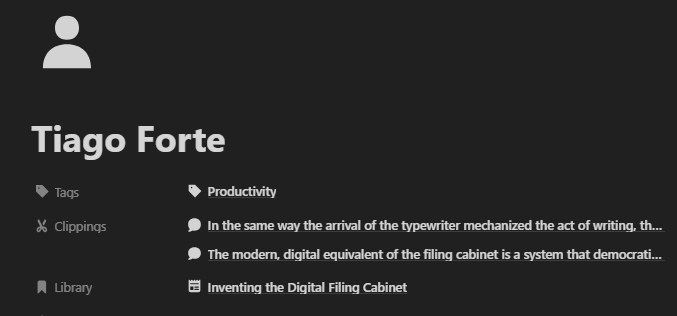
People
This is the creator of the related library item or clipping. So that could be the author of a book, host of a podcast or the person a quote is attributed to.
Tags
Tags act as high level categories for items in the library or clipping database.
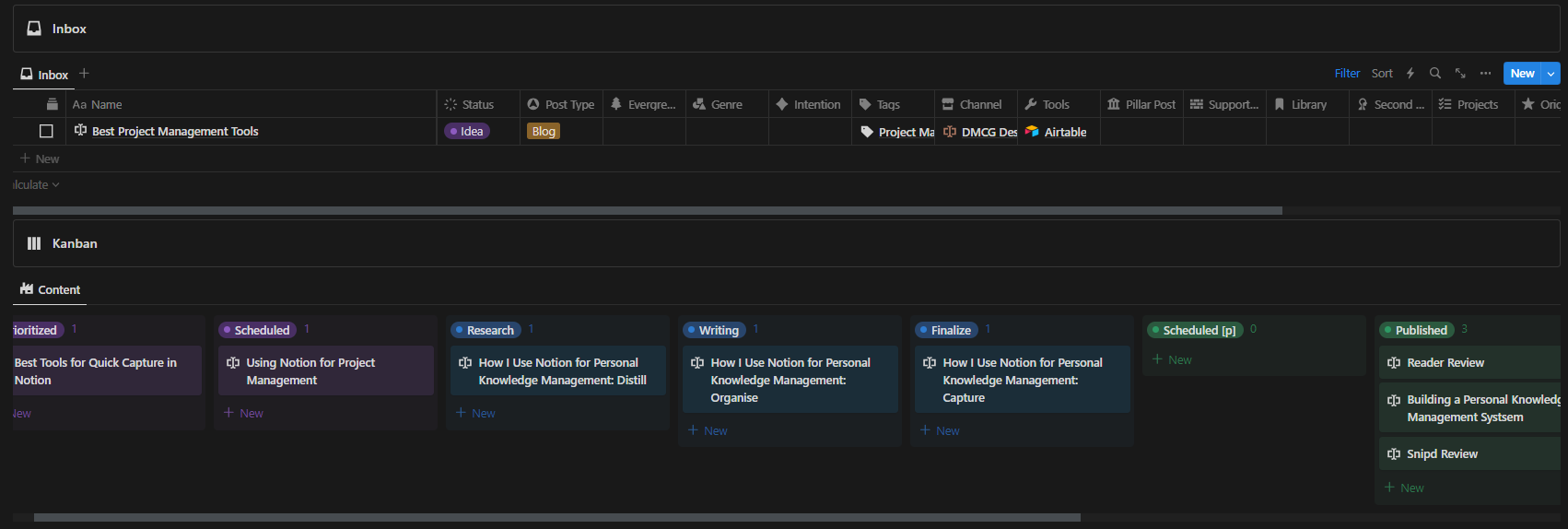
Content*
The Content database is where I manage all of my content like this blog article from ideation to completion. Content ideas inspired by items in my library can be related to each other. Individual quotes or thoughts I want to use to improve my content are linked in a Clippings to Content relation.
Having a PKM system can inspire more than the content of a blog post. My library would also be related to other databases in my Notion system like Projects or Tasks. The idea here is that my PKM system is structured around an action or output, so saved content should be related to at least one item from the Content, Projects or Tasks database.
CODE Framework
This system is strongly inspired by Tiago Forte’s C.O.D.E. (Capture, Organise, Distill & Express) framework for knowledge management which he outlines in his book; Building a Second Brain. The core databases of my PKM system leverage this framework. Content is Captured into the Library, Organised with meta data like adding a tag and an author. The content is consumed and the distilled into individual clippings that resonated most. Those clippings are used to fuel and inspire my own content which is where the Expression takes place. Now for the nitty gritty, let’s explore the system through each phase of this framework. In this post we’ll focus on Capture.
Capture
”We are the judges, editors, and interpreters of the information we choose to let into our lives” - Tiago Forte, Building a Second Brain
It’s time to get a little picky. Saving every article, tweet or podcast that might be helpful at some point will create an overwhelming backlog. A backlog that’s likely filled with irrelevant or mediocre information. Curate. Be selective. That’s my advice. Here are some principles that might help you capture and decide what’s worth keeping and what’s not.
Stop Chafing
Capturing should be as frictionless as possible. While it’s important to be selective we shouldn’t spend too much time on the decision to capture. This isn’t the time to stop what we were doing and think about exactly how we might leverage this new piece of information. Capture or don’t, if you’re unsure, capture. The real curation happens later. Your capture system should be build around reducing friction too. Minimize the number of clicks and the amount of effort it takes to get something into your system.
Orientate Around Action
Focus around your output, your expression. Save a YouTube tutorial for that DIY project you’ve been meaning to do, or an article on selling digital products for a side hustle you want to start this year. With a lens on the action; the product to ship, the script to write, whatever it may be - you’re capturing stuff you know can help with that end deliverable. If whatever you find passes that litmus test, it’s probably worth capturing.
Wiggle
There’s always exceptions and room to wiggle. Capturing what we *know* can help with out work is a great primary focus but that on it’s own can sometimes feel a little lacking or obvious. If something truly resonates with you, it’s worth holding on to. Even if you can’t see an application for it yet. Some of the most interesting connections you can make in your system are between topics, that at least on the surface, are completely unrelated. Those unique connections are often the most valuable and definitely the most rewarding. Without your PKM system in place those connections are never made.
While I hope those principles might help, remember there’s no right or wrong way to capture. If what you have in your system is helping you make better stuff you’re doing something right. Any other efficiencies will come with time.
So what does capture look like in a Notion PKM system? How you capture is going to depend on the source of the information.
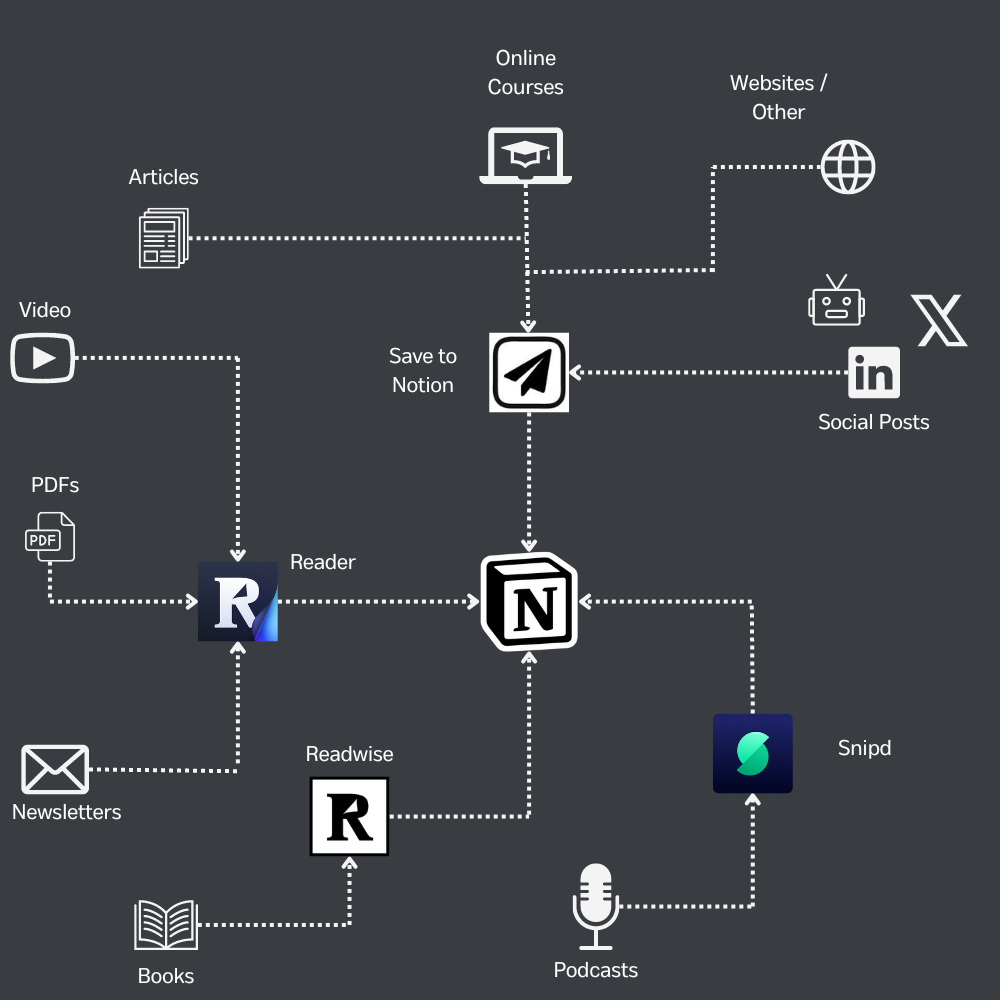
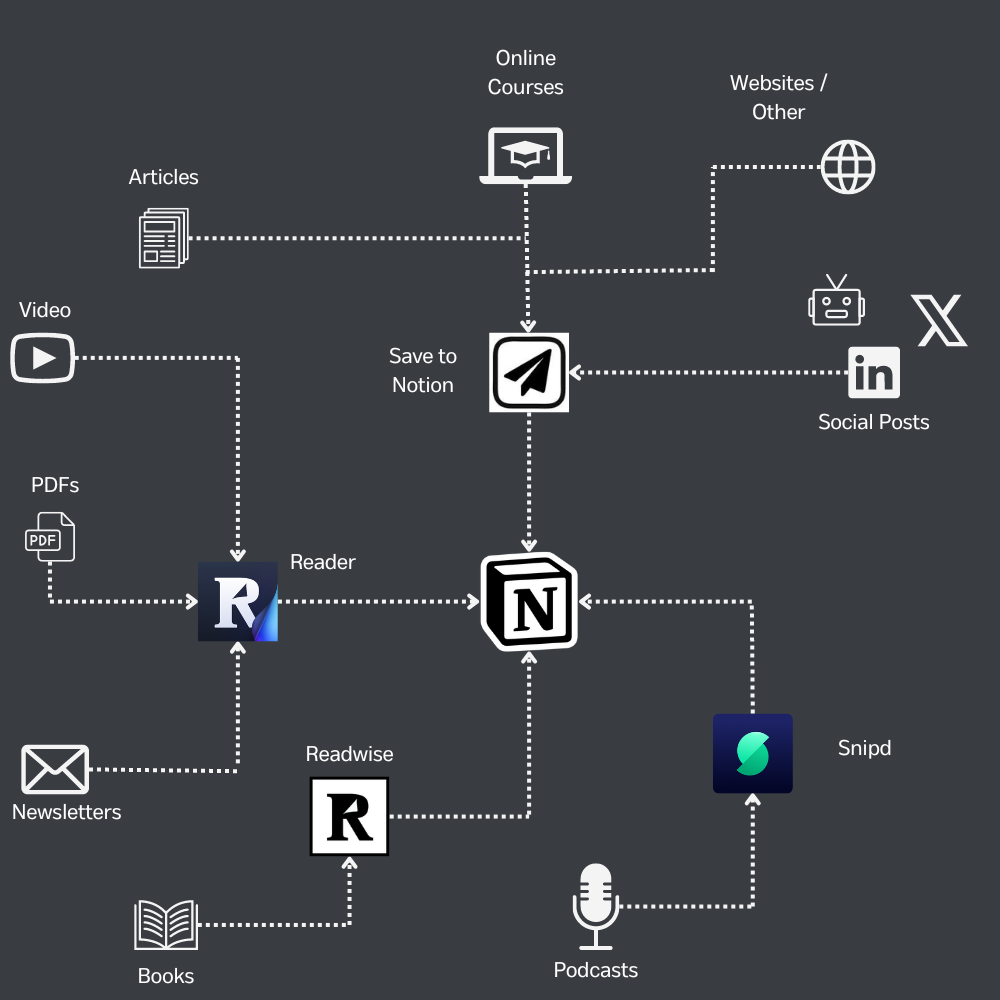
Save to Notion is a very powerful web clip chrome extension for saving content across the internet to your Notion databases. It has a a lot more functionality than Notion’s own web clipper so I generally prefer it. You can create different forms to save to different databases in your Notion workspace. You can configure forms to automatically pull images, page icons and the page content from the URL you’re capturing.
You can add fields to your forms based on the properties in the connected Notion databases so you can add all of the metadata at the point of capture. While this is a really useful feature it’s generally not one I rely on too heavily. Spending them categorizing at this point starts to add friction to the process. If you want to quickly apply a couple of properties to a page you’re saving you can add a template field to your form. This allows you to apply your Notion database templates to the page you’re saving directly in Save to Notion with one extra click. Beyond that, capture quickly and organize later so you can focus on the task at hand. To capture on the go I use Kiwi as my mobile browser. Kiwi is an chromium browser for Android. One of its unique selling points is that unlike the Chrome app it supports Chrome extensions on mobile, so I still have access to use Save to Notion there. For iOS users, I believe Safari has functionality to use browser extensions on iPhone.
To save book highlights to Notion, I primarily read using my Kindle. I use Readwise to automatically pull my Kindle highlights and export them directly to Notion. It’s a pretty seamless integration that’s very easy to set up. Readwise also recently launched it’s dedicated read-it-later app, Reader, which I’ve also integrated into my workflow. While I save most resources, directly to Notion with Save to Notion I use Reader for 2 main purposes:
- YouTube videos. Reader does a great job of pulling full transcripts from videos directly which you can review while watching in the Reader app. Highlighted parts of the transcripts can be exported to your Notion account.
- Email Newsletters. Reader gives you a unique email address that you can use to sign up to email newsletters of your choice. Instead of emails clogging up your primary email inbox, they’re sent directly to Reader for you to review and create highlight from. I go into these features and more in greater detail in my full Reader review here.
Last but not least, your capture process needs to have a system in place to quickly capture your own thoughts. An idea you have, a task you remembered to do tomorrow. These also need to be captured as quickly as possible so you don’t need to worry about remembering them. I often find myself having new ideas for projects and article posts when in the middle of working on one. So I set up Notion buttons across my workspace to quickly capture these to be processed later. This works great, when I’m at my desk but what about when I’m out and about? Notion has a dedicated Quick Note widget, so you can start writing on a Notion page and save it to the correct database.
Removing as much friction as possible is the focus of capturing in my own knowledge management system. If you’re interested in giving my knowledge management template a try, there’s more information available below.
*An integration with a Content database is not built in to the Notion Knowledge Management Kit below. Sign up with your email address below if you’re interested in future product releases.
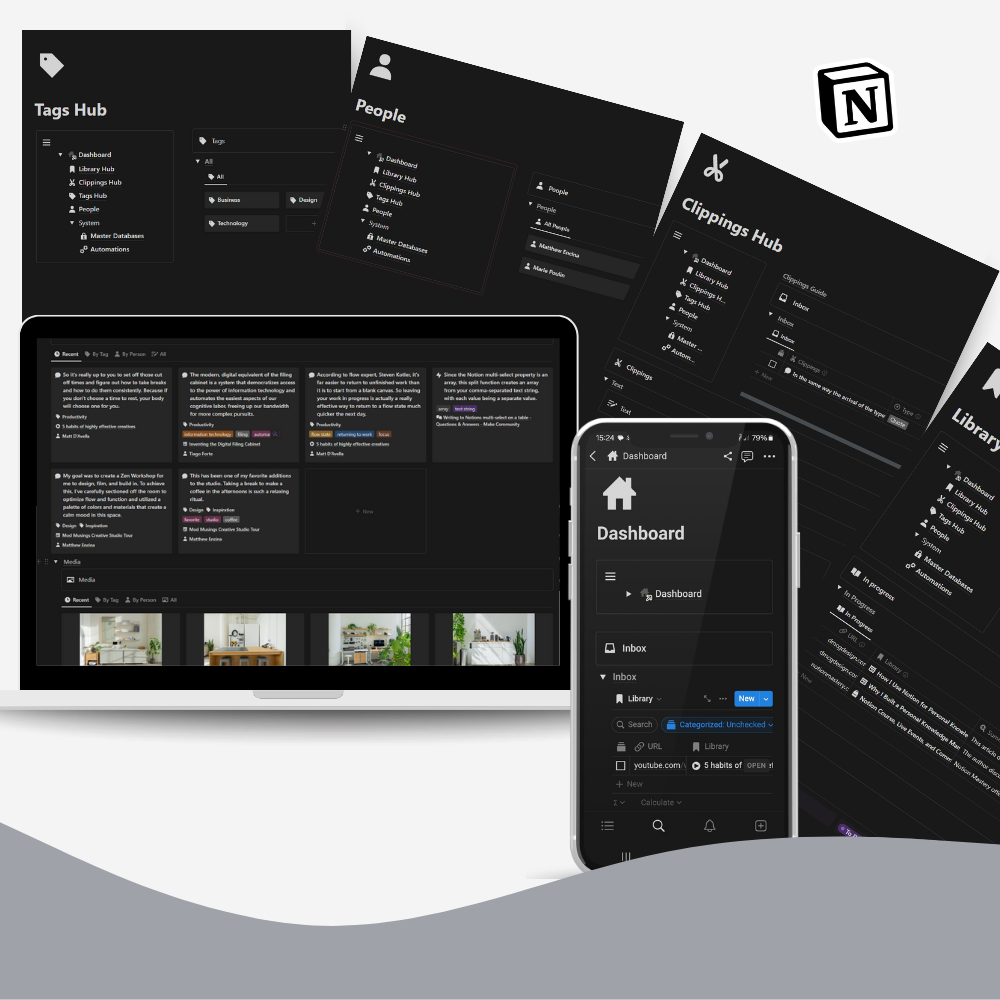
Managing the wealth of resources at your fingertips can be an overwhelming challenge. That's where our Notion Knowledge Management System steps in—a highly effective template designed to simplify your quest for knowledge and inspiration.
Your Personal Curator
Picture a space where you can effortlessly organize and curate all your saved resources, from informative articles and helpful videos to essential documents. Our intuitive Notion template transforms the digital clutter into an organized treasure trove, all for your benefit.
Unlock Your Creativity
Knowledge is more than facts; it's a wellspring of inspiration. Dive into your thoughtfully curated repository to fuel your projects and endeavors with fresh ideas and novel approaches.
Enhance Your Work
Elevate the quality of your work with every resource you explore. The insights gleaned from your knowledge archive becomes a building block to build your deliverables on.
Knowledge at Your Fingertips
No more hunting for that elusive article or forgotten video. Your saved resources are neatly organized within Notion, just a click away.
Your Notion, Your Rules
Customize the template to suit your workflow and objectives. It's a canvas waiting for your personal touch. Adapt it to work best for you.
Informed Decision-Making
Harness the knowledge you've collected and cataloged to make well-informed decisions, whether in your personal life or professional endeavors.
Building Future Value
As your knowledge repository grows, it becomes a valuable asset that appreciates over time, serving as a lasting source of insight and inspiration.
Inspired by Tiago Forte's C.O.D.E Framework
The heart of our system beats to the rhythm of success—inspired by the renowned Tiago Forte's C.O.D.E framework for knowledge management. It's not just a tool; it's a strategy. Structure your knowledge with ease, gaining valuable insights and productivity in the process.
Try out the Notion Knowledge Management System. It's not just about managing knowledge; it's about embracing it. Your journey towards knowledge excellence begins here.